What tools are available?
At every step of the community engagement journey, you have an opportunity to really think about what you need to know and how you’re asking it, and then amend your engagement activity accordingly.
Visit the HIVE Learning Centre to read about the suite of tools available and what each one does.
Visit this page to view the participation and content tools. Click on each tool to see their functionality.
Also visit the Demo site to see the tools in action and our own projects on the Peers tile of this Hub.
Training Videos for tools
Conversation/Interactive Tools
Want to interactive with your audience?
Conversation Tool
Below is a description of the tool and a screenshot of what it can look like:
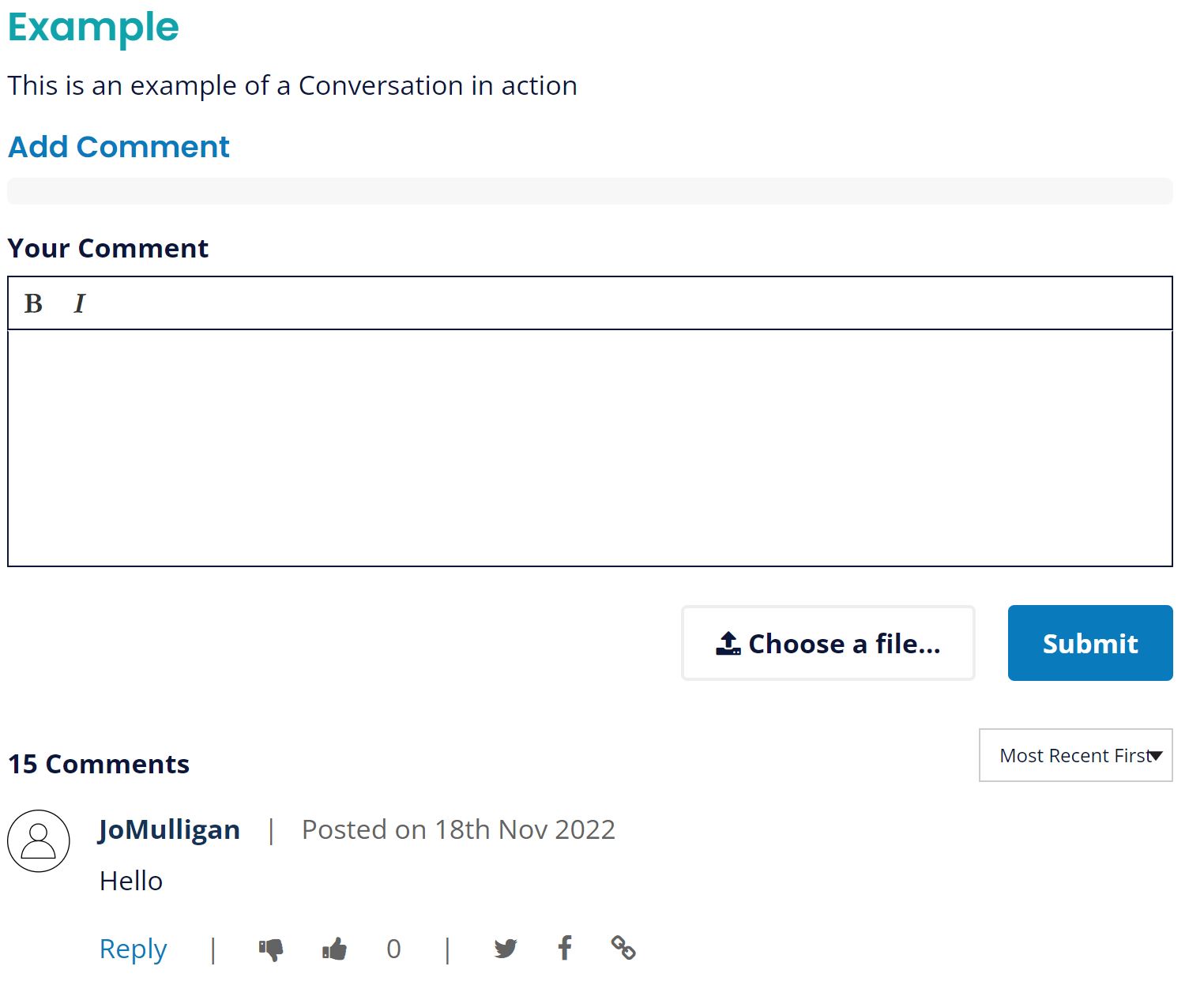
The Conversation tool allows online discussion between participants in a conversational format. Participants can make a comment and other visitors can respond to the comment, creating a threaded discussion.
Additionally, visitors can optionally vote or share individual comments from the Conversation. Comments can also be shared to social media or linked to individually. Commenters can edit or delete their comments retrospectively.
Q and A Tool
Tivoli Drive engagement used this to allow community members to ask questions which City staff answered. See the Q&A tab on this page - https://yoursay.geelongaustralia.com.au/tivoli-drive-curlewis
Gather Tool
Gather allows people to leave more than just text. They can respond to your call to action with pictures, videos and longform comments. You can add custom categories so responses can be filtered and sorted. Other visitors can leave comments on responses or 'like' them, allowing people to vote for, or respond to ideas, comments or proposals.
Kardinia Park is currently using it to collect stories. They’ve turned off comments but it gives you an idea - https://yoursay.geelongaustralia.com.au/KPMP/kardinia-park-history
Here’s a Family Services one where images have been encouraged - https://yoursay.geelongaustralia.com.au/BababNyayl
Quick Poll
The Quick Poll is a simple tool that allows Users to quickly poll an audience by asking a single prompting question with multiple choice responses. Participants respond to a single question by selecting from a list of predefined answers and are shown the results of the poll after voting.
The Quick Poll is great for ‘checking the temperature’ of your audience on topics using simple questions or for quickly grabbing attention with a simple question.
Results can optionally be made visible to the user either before or after voting and you can choose whether users see bar graph or a pie chart. You can also provide users with the option to cancel their vote.
Planning for Geelong’s Shared Trails used a poll on their page - https://yoursay.geelongaustralia.com.au/planning-geelongs-shared-trails/barwon-river-loop-trail
Deleting tools from page
You can remove the tools from the page if moving onto next stage or page too cluttered - and the data will stay in your reports.
Things to consider though:
- Keeping it all on page - perhaps in a tab is great for full transparency.
- However, If the page is feeling cluttered. Look to keep the participation tools that automatically display a participant's feedback (Gather, Quick Poll, Social Map) but delete and replace those that don’t give all details (survey/form, Fund-it) with either a project update or Facts Cards block summarising what you’ve heard, some interesting data and how it's going to be used.
- Or....... if you prefer you can remove all participation tools and replace with relevant news updates on all that has been heard in each tool/stage. This will certainly help save on space, continue to provide the feedback community wants and help close the loop with your community. However, this could reduce a community’s view on transparency regarding the data collection method used and damage trust you have built if they question how data was collected. To remove the tool/s, you need to turn off the tool and then delete.